![logo.svg]](https://knowledge.c-link.com/hubfs/Imported%20sitepage%20images/logo.svg)
Estimated Read Time: 3 Minutes ⏱
It is recommended to familiarise yourself with the Project Dashboard and Procurement Schedule sections before proceeding with this guide.
Sections in this Article:
🤖 Overview
Convert an existing BoQ (Excel, CSV, or PDF) into the C-Link BoQ format using AI, then review, refine, and finalise it before issuing to tender.
✍️ Step-by-Step Instructions
- Open Bill of Quantities for your project: Projects → [Project name] → Procurement Schedule → Bill of Quantities.
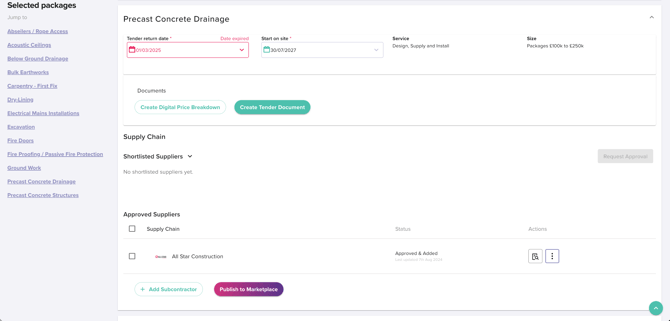
- Select the work package tab where the BoQ should sit. Each generation relates to a single work package.
On the Smart BoQ Builder card, click "Generate with AI".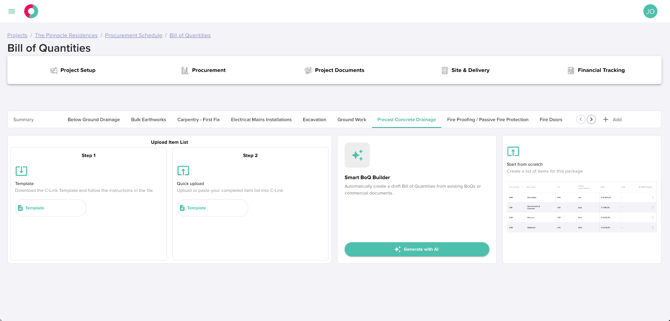
- Upload your existing BoQ – drag and drop, or click "Browse files". Single file only; supported formats are Excel, CSV, and PDF.
Note: Smart BoQ Builder currently analyses and adds items for a single work package. If you have an Excel spreadsheet with multiple tabs (1 work package per tab), please save each tab separately.
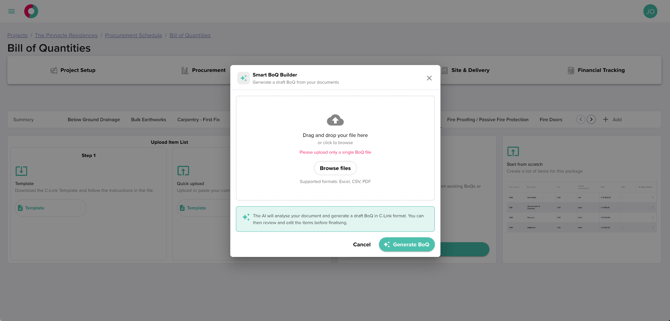
- Confirm the uploaded file appears under "Uploaded file", then click "Generate BoQ".
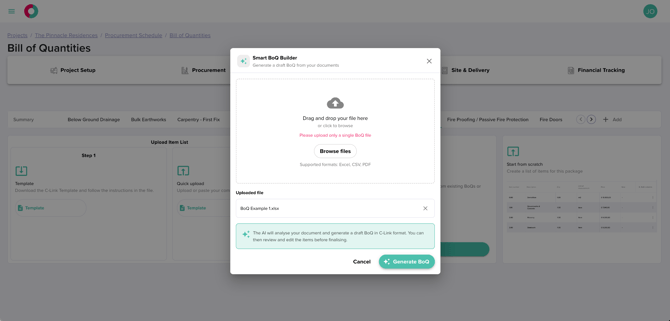
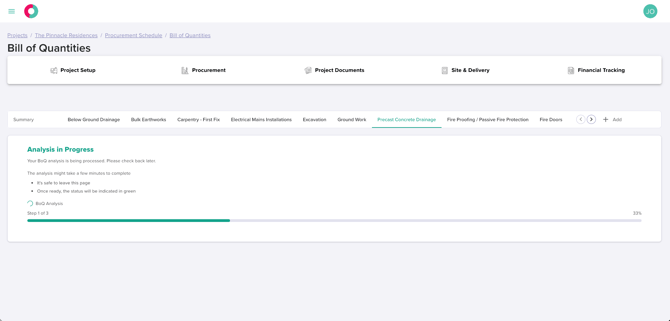
- Wait while analysis runs. The "Analysis in Progress" panel shows a progress bar and step counter. It is safe to leave the page and come back – the status will update on return.
- When generation completes, the draft BoQ is inserted into the editable BoQ table. Review the items, fill in any blank fields, and refine before issuing the package to tender.
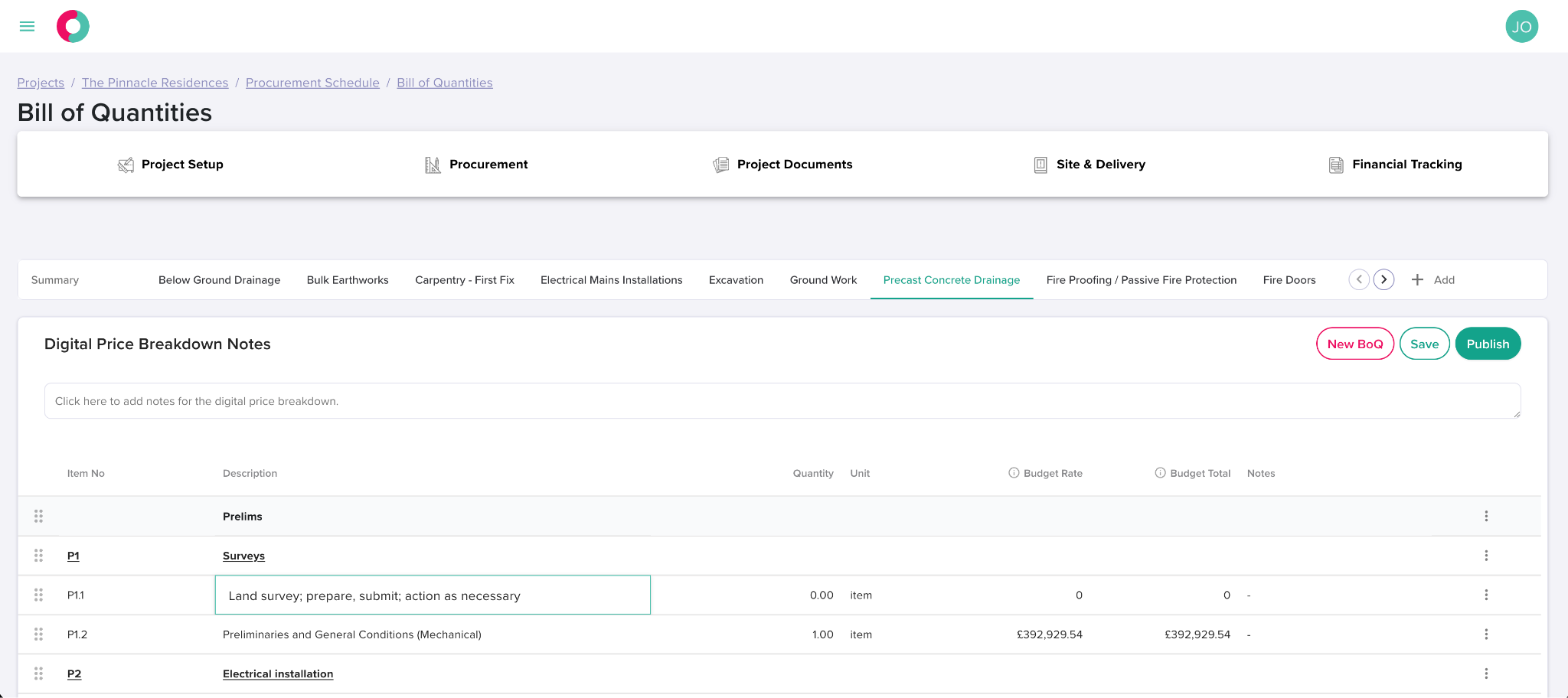
- When editing is complete, select the “Save” button, and then the “Publish” button. Once published, then the BoQ will be available to add to a Tender document to send out to Suppliers.

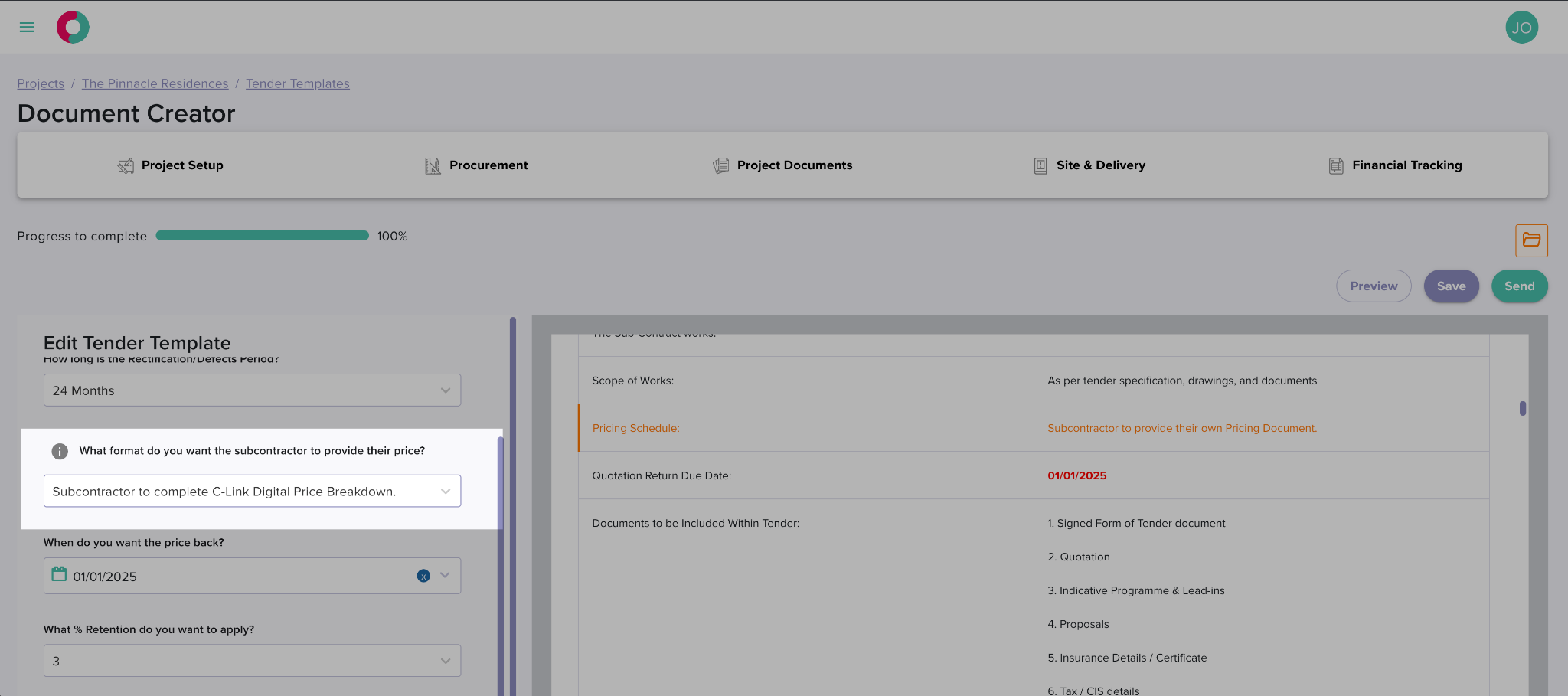
- Attach the BoQ to a tender document by selecting “Subcontractor to complete C-Link Digital Price Breakdown.”
💡Tips and Best Practices
- Keep one work package per file. If your source BoQ contains multiple packages, split it before uploading. For tips on how to split up an Excel spreadsheet with multiple tabs, see the section below on Working with Multi-Tab Spreadsheets.
- Use clean input files where possible. Pre-processing is skipped in this release, so the cleaner the input, the better the extracted BoQ.
- Treat the output as a draft, not a finished BoQ. Review every line before tendering – uncertain fields are deliberately left blank.
- Re-running overwrites the previous result. If you have already edited the BoQ, export or back it up before re-running.
- It is safe to navigate away during processing. Status persists, and you can return to check progress.
🛠️ Common Mistakes or Troubleshooting
- Full project or multiple package BoQ file – Not supported in this release. Split the file by package and generate each separately.
- "Please upload only a single BoQ file" – Only one file is allowed per generation. Remove additional files and upload one at a time.
- Empty or near-empty BoQ returned – The input may be too unstructured for the AI to extract reliably. Check the file format/structure or clean it before retrying.
- Long-running task or apparent timeout – Use Cancel and Retry. Navigation away from the page is safe and will not lose progress.
- Lost edits after re-running – Re-running overwrites the BoQ. There is no version history in this release – back up before retrying.
🖥️ Working with Multi-Tab Spreadsheets
The Smart BoQ Builder currently accepts one work package at a time. If your Bill of Quantities is set up across multiple tabs in a single Excel file – which is the most common QS workflow – you'll need to save each tab as its own file before uploading.
Here are the quickest ways to do that:
Option 1 – Move or Copy
This is the simplest method and works in all versions of Excel.
- Right-click the tab you want to export (e.g. "Package 02 – Groundworks")
- Select Move or Copy…
- In the dialog, set To book: to (new book)
- Tick Create a copy
- Click OK — a new Excel file opens with just that tab
- Press Ctrl + S (or Cmd + S on Mac) and save it with a clear name, e.g. 02_Groundworks_BoQ.xlsx
- Repeat for each tab
Tip: Name your files to match your work package reference numbers (e.g. AAA-003_Access_Controls.xlsx). This makes it much easier to track which file you've uploaded against which package in C-Link.
Option 2 – Export as a New File (Excel 365 / 2021)
If you're on a newer version of Excel:
- Click the tab you want to save
- Go to File → Save a Copy
- Choose your folder and save
- Delete the unwanted tabs from that copy before uploading
✅ Summary
This guide has outlined the steps and best practices for generating a Bill of Quantities (BoQ) using the Smart BoQ Builder, from uploading your source file to reviewing the final draft. By following these steps, you can efficiently convert existing BoQs for tendering.
If you need further guidance on using the Smart BoQ Builder or want to explore how to optimise your procurement process, please contact us at info@c-link.com or reach out to your Customer Success Manager.