![logo.svg]](https://knowledge.c-link.com/hubfs/Imported%20sitepage%20images/logo.svg)
Estimated Read Time: 5 Minutes ⏱
It’s recommended that you’re familiar with the Supply Chain area before following this guide.
Sections in this Article
- 📋 Components of a PSO
- 📍 How to Access the PSO from Anywhere
- ⚙️ Milestones (including Configuring Lead Times)
- 📊 Export to Excel
- ✅ Summary
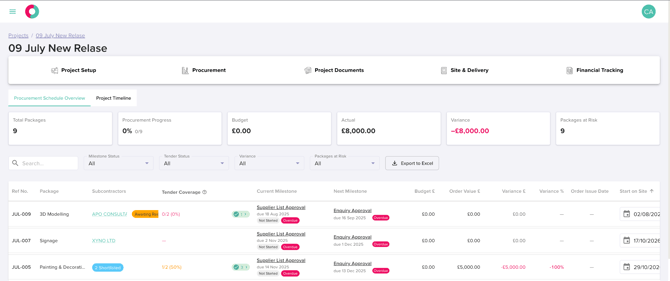
The Procurement Schedule Overview (PSO) gives you a live, at-a-glance view of every work package on a project – its progress through the procurement process, supplier status, budget performance, and key dates.
📋Components of a PSO
The PSO grid lists one row per work package, with the following columns:
|
Column |
What it means |
|---|---|
|
Reference No. |
A reference number automatically created when the work package is set up. It can be manually adjusted afterwards. |
|
Subcontractors |
Suppliers that have been shortlisted from the Supply Chain for this work package. If your Account has the Supplier Approval feature turned on and suppliers are going through approval, their approval status appears under this column. |
|
Tender Coverage |
The number of quotes returned divided by the total number of subcontractors who received an invitation to tender. |
|
Completed Milestones (green pill) |
A clickable pill showing the number of completed milestones. Clicking it opens more detail on which milestones have been completed. |
|
Current Milestone |
The milestone the work package is currently on in the procurement process. |
|
Next Milestone |
The next milestone to be worked on after the current one. |
|
Budget £ |
The budget set up for that work package. |
|
Order Value |
The lowest quote value returned so far, or the value of the order contract in progress – depending on where the work package is in the procurement process. |
|
Variance £ |
Order Value minus Budget. Can be positive or negative. |
|
Variance % |
The percentage the work package is over or under the budgeted amount. |
|
Order Issue Date |
The date the order contract is issued. |
|
Start on Site Date |
The date the subcontractor is due to start on the project site. |
📍 How to Access the PSO from Anywhere
Click on the Project Name from anywhere in the platform to open the Procurement Schedule Overview for that project.
⚙️ Milestones
Work packages progress through two types of milestones:
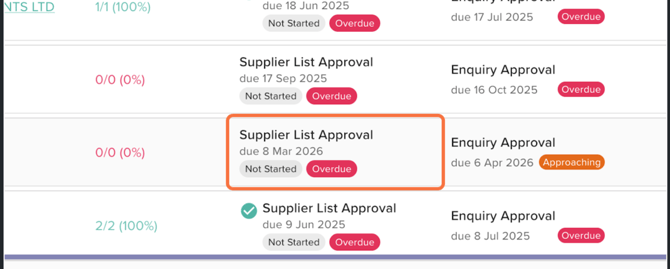
- Manual milestones – updated by a user. Click the milestone name to open its details, click Start Milestone to begin it, and click the milestone name again when ready to mark it complete, choosing a completion date (you can back-date, but not earlier than the project start date).
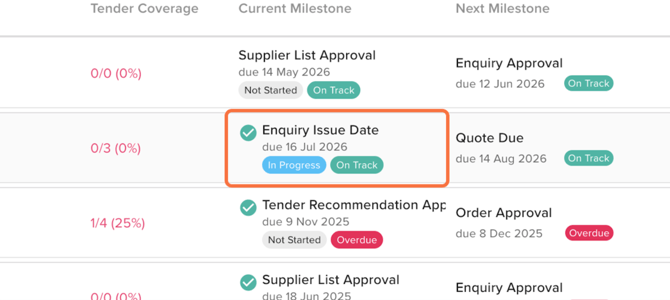
- Automatic milestones – updated automatically by actions taken elsewhere in the platform and cannot be manually advanced. For example, drafting a tender enquiry moves Enquiry Issue to In Progress; the Supplier List Approval milestone moves from Not Started to In Progress once suppliers are shortlisted, and to Completed once at least one supplier is approved (where the Supplier Approval feature is enabled).
Configuring Lead Times
Lead times control how time is allocated between milestones when a work package is created:
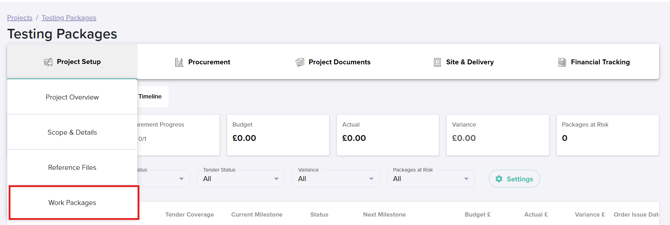
- From Project Setup, click Work Packages.
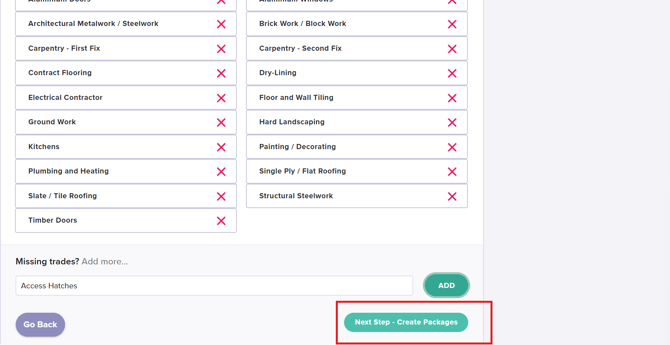
- Add trades if required, then click Next Step – Create Packages.
- Select the relevant trade(s) and click Add Package
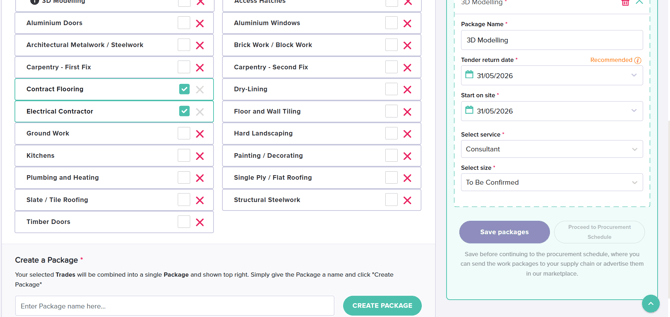
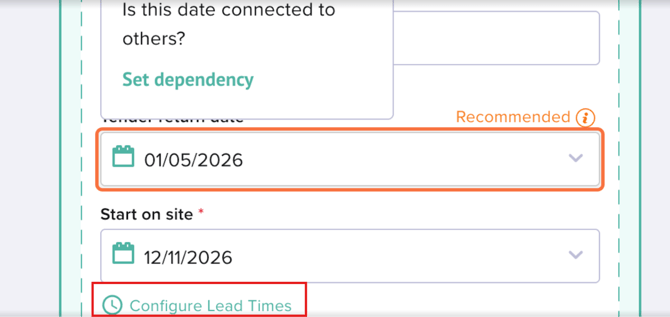
- Click on the work package header to open its details.
- Click Configure Lead Times, then review and adjust the lead time between each milestone.
- Click Save Lead Times, then Save Packages.
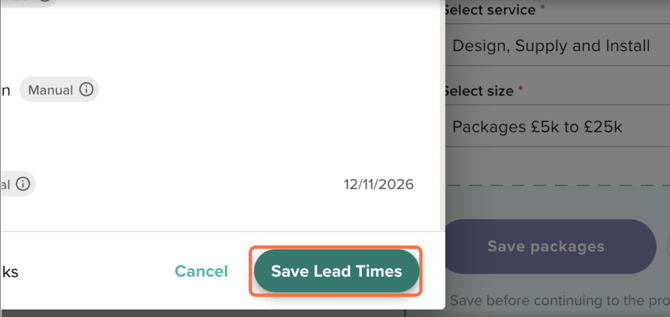
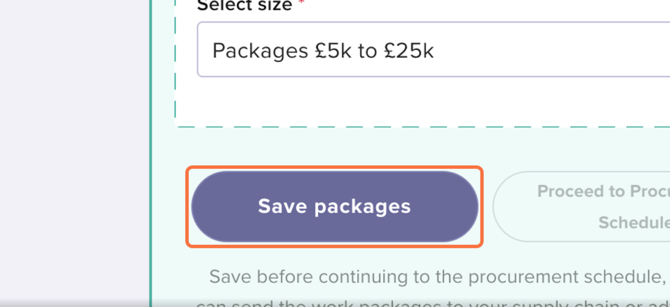
Note: Lead times cannot be changed once the first milestone has been started.
📊 Export to Excel
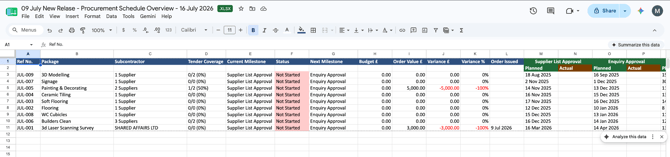
Click the Export to Excel button next to the column filters to download a report that mirrors your live grid – including reference numbers, package names, budget and order values, and all enabled milestone columns. The downloaded file is named with the project, "procurement schedule overview," and the export timestamp.
✅ Summary
This guide has outlined how to:
- Navigate the Procurement Schedule Overview (PSO) to track work package progress.
- Monitor progress using manual and automatic milestones.
- Track financial health, including budgets, order values, and variances.
- Manage project timelines by configuring lead times.
- Efficiently access and export schedule data to Excel for offline reporting.