![logo.svg]](https://knowledge.c-link.com/hubfs/Imported%20sitepage%20images/logo.svg)
Estimated Read Time: 5 Minutes ⏱
It’s recommended that you’re familiar with the QSAI Tool for Quote and Tender Analysis page before following this guide.
Sections in this Article:
- ⚙️ Understanding Quote Levelling Prerequisites
- 🚀 How to Run Quote Levelling
- 🛠 Troubleshooting Common Issues
- ✅ Summary
⚙️ Understanding Quote Levelling Prerequisites
To enable the Quote Levelling tool, ensure your work package meets these criteria:
- Documented Quotes: You must have between 2 and 5 documented quotes.
- Documentation Required: Every quote must have a file attached; numeric-only entries are ineligible.
- Supported Intake Paths: Works for quotes added manually by the QS or submitted via Prosper.
🚀 How to Run Quote Levelling
Walk through these steps to generate your normalised comparison.
- On the Quotes & Analysis page, scroll to the work package you want to compare quotes for.
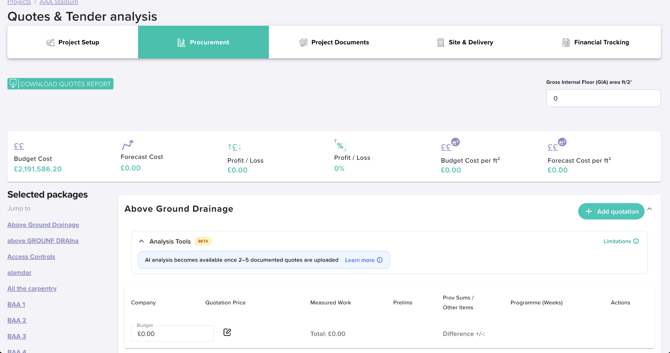
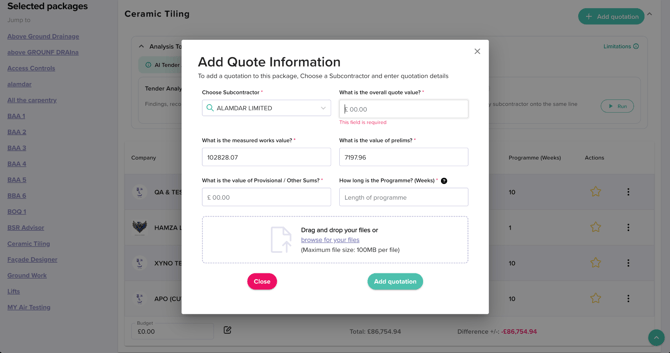
- If you are uploading a quote yourself from outside the system, click “+ Add quotation.” Choose the subcontractor, then enter the overall quote value, measured works value, prelims value, provisional/other sums value, and programme length (weeks). Upload the quote file(s) - multiple files per quote are supported, up to 100MB per file), then click “Add quotation.” Documentation is required — quotes without an attached file will not count toward the analysis-eligibility minimum.
If quotes are sent to you from Subcontractors in Prosper, the quotes will appear on the Quotes & Analysis page when they are received. In order to be analysed using C-Link’s Analysis Tools, quotes will need the overall quote value, measured works value, prelims value, provisional/other sums value, programme length (weeks), and the quote file uploaded. - Repeat for each subcontractor quote until the package has at least 2 documented quotes (up to 5). Once the threshold is met, the Analysis Tools panel activates and shows a green “AI Tender Analysis (Beta) enabled” banner.
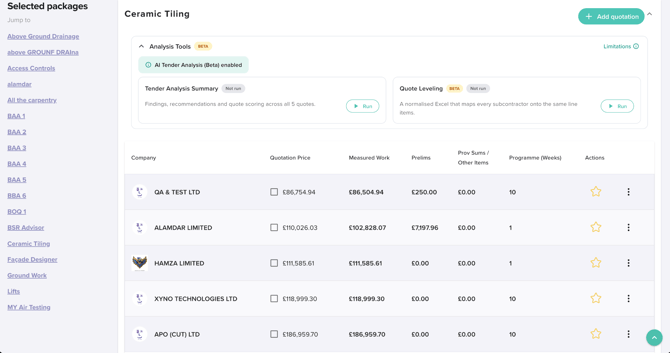
- Under the Analysis Tools section, click “Run” on Quote Levelling and/or Tender Analysis Summary — they can be run independently and at different times.
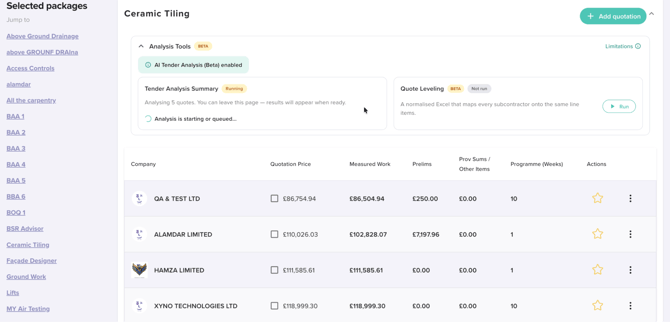
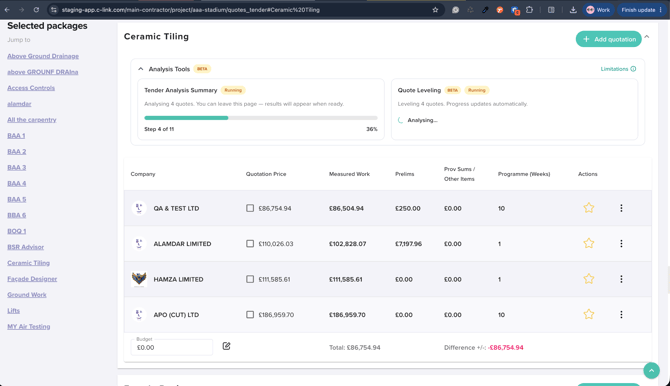
- While processing, the card shows a live status (e.g. “Step 4 of 11 — 36%” for Tender Analysis Summary; a shorter “Analysing…” state for Quote Levelling). You can navigate away and come back later — results appear when ready.
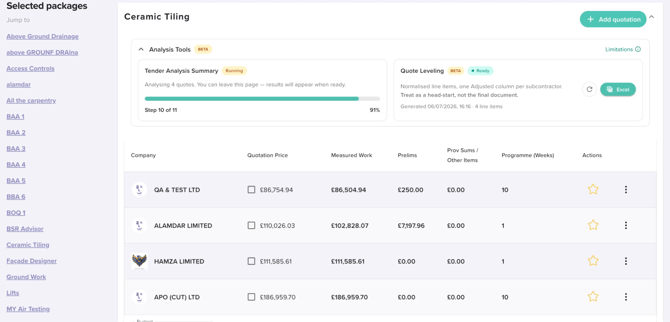
- When Quote Levelling shows a green “Ready” badge, click the “Excel” button to download the normalised comparison workbook.
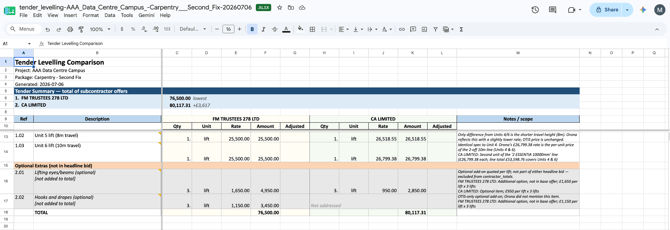
Open the workbook alongside the Tender Analysis Summary report (via its “View” button) as your starting point for building a tender analysis.
Sample Excel workbook:
🛠 Troubleshooting Common Issues
-
"AI analysis not available for this package"
Click "Why not?" to check if the package is missing documentation or has fewer than two quotes. -
Analysis disappeared
Removing or editing a quote may drop the package below the eligibility threshold. -
Status message looks wrong
Use the progress bar percentage as the source of truth.
✅ Summary
This guide has outlined how to:
- Understand eligibility for Quote Levelling
- Upload documented quotes correctly
- Generate and download a normalised Excel comparison
- Troubleshoot common analysis blockers
Following these steps ensures your tender analysis process is structured and efficient.